Import Data
There are two primary ways in which you can load your data into the Cubeviz
application. Cubeviz supports loading FITS files that can be parsed as
Spectrum1D objects, in which case the application will
attempt to automatically parse the data into the viewers as described in
Displaying Cubes, including the 1D spectrum viewer.
Importing data through the GUI
The first way you can load your data into the Cubeviz application is
by clicking the Import button at the top left of the application’s
user interface. This opens a dialogue where you can navigate your local
file system (single click to enter a folder) and select the path of a file
that can be parsed as a Spectrum1D:
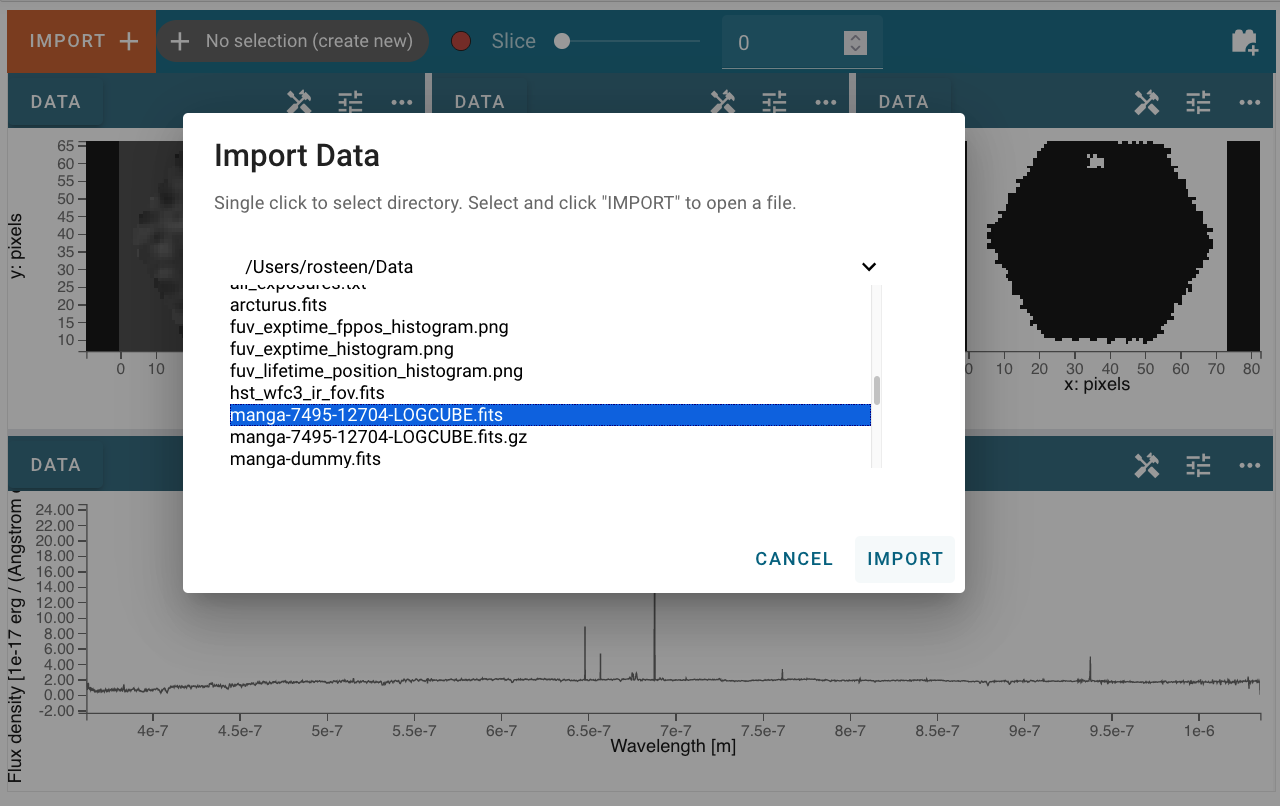
After clicking Import, the data file will be parsed and loaded into the application. A green success message will appear if the data import was successful. Afterward, the new data set can be found in the Data tab of each viewer’s options menu as described in Selecting Data Set.
Importing data via the API
Alternatively, if you are working in a coding environment like a Jupyter
notebook, you have access to the Cubeviz helper class API. Using this API,
you can load data into the application through code using the
load_data()
method, which takes as input either the name of a local file or a
Spectrum1D object.:
from jdaviz import Cubeviz
cubeviz = Cubeviz()
cubeviz.load_data("/Users/demouser/data/cube_file.fits")  # doctest: +SKIP
cubeviz.app
If instead you would like to load data you have created within the notebook, you can do the following:
import numpy as np
from astropy import units as u
from astropy.wcs import WCS
from specutils import Spectrum1D

flux = np.arange(16).reshape((2, 2, 4)) * u.Jy
wcs_dict = {"CTYPE1": "WAVE-LOG, "CTYPE2": "DEC--TAN", "CTYPE3": "RA---TAN",
            "CRVAL1": 4.622e-7, "CRVAL2": 27, "CRVAL3": 205,
            "CDELT1": 8e-11, "CDELT2": 0.0001, "CDELT3": -0.0001,
            "CRPIX1": 0, "CRPIX2": 0, "CRPIX3": 0}
w = WCS(wcs_dict)

cube = Spectrum1D(flux=flux, wcs=w)
cubeviz.load_data(cube)
cubeviz.app
To then extract your data from Cubeviz, please see the Using Cubeviz in a Jupyter Notebook section.